

How to Auto-Update Supplier Pricing and Apply Markups in Shopify with syncX


Key Takeaways
- Automatic price updates keep Shopify aligned when supplier costs change.
- Markup rules can calculate selling prices from supplier data without editing products individually.
- Cost, retail price, margin, and markup are different fields and must be mapped correctly.
- Feed-based pricing is best for recurring supplier updates, while bulk editing suits one-time promotional changes without a feed.
- syncX: Stock Sync can schedule price updates, apply pricing conditions, and update Shopify automatically.
How Outdated Supplier Prices Put Your Shopify Margins at Risk
Your supplier increases a product from $20 to $24.
Shopify still sells it at the price calculated from the old cost.
The product continues selling, but each order earns less than expected. If shipping, duties, or marketplace fees have also increased, the product may now be unprofitable.
One missed change may not cause much damage. Hundreds of products across several suppliers will.
Manual price updates become difficult as your catalog grows. You have to find every affected SKU, confirm the new cost, calculate the markup, edit Shopify, and repeat the process whenever the supplier changes its file.
An automatic price update removes that delay. When the supplier publishes new pricing, syncX: Stock Sync can read the source, apply your pricing rules, and send the calculated values to Shopify.
What Is an Automatic Price Update in Shopify?
An automatic price update uses supplier data and predefined rules to calculate or replace product prices in Shopify.
The process usually follows four steps:
- syncX: Stock Sync reads the latest supplier file or connected source.
- Each supplier record is matched to the correct Shopify product.
- The supplier price is processed through your markup or pricing conditions.
- Shopify receives the updated selling price on the chosen schedule.
This allows you to update Shopify prices from supplier data without checking and editing each product manually.
syncX: Stock Sync supports automated pricing alongside inventory, images, categories, and metafields. Merchants can schedule updates and apply markups through configurable rules.
Where Manual Supplier Pricing Breaks Down
Supplier Costs Can Change Without Warning
Manufacturing costs, shipping charges, wholesale rates, and vendor discounts can change between supplier files.
If Shopify is not updated after those supplier cost changes, your selling price continues using old information.
You may not notice the problem until sales reports show that margins have fallen.
One Pricing Error Can Spread Across a Large Catalog
A supplier may increase prices for an entire brand or category.
Updating those products one by one creates more opportunities for:
- Missed SKUs
- Incorrect calculations
- Inconsistent markups
- Typing errors
- Outdated regional prices
Automated repricing applies the same approved logic across every matching record.
Cost Price and Selling Price Can Be Confused
A supplier feed may contain:
- Wholesale cost
- List price
- Recommended retail price
- Promotional price
- Minimum advertised price
- Regional price
The cost price is what you pay the supplier. The Shopify selling price is what the customer pays.
Mapping the supplier cost directly to Shopify’s customer-facing price can remove your markup immediately.
Most expensive pricing mistake: Never assume a column called “Price” is the final selling price. Confirm whether it contains cost, retail, promotional, or regional pricing before automating the feed.
For a deeper explanation of field selection, read Field Mapping Explained: How syncX Matches Supplier SKUs, Prices and Quantities to Shopify.
Markup and Profit Margin Are Not the Same
Markup measures profit against cost. Margin measures profit against the selling price.
For example, suppose a product costs $20.
- A 50% markup produces a $30 selling price.
- The resulting profit margin is 33.3%.
- To achieve a 50% margin, the selling price must be $40.
This distinction matters when configuring pricing formulas. A 50% markup does not produce a 50% margin.
How Supplier Price Automation Works
syncX: Stock Sync reads the approved supplier price field, matches it to the correct Shopify product, applies your pricing formula, and updates the customer-facing price.
The source connection and product mapping must already be reliable. See:
- Shopify Supplier Connection Methods for choosing the source
- Field Mapping Explained for selecting the correct cost or retail column
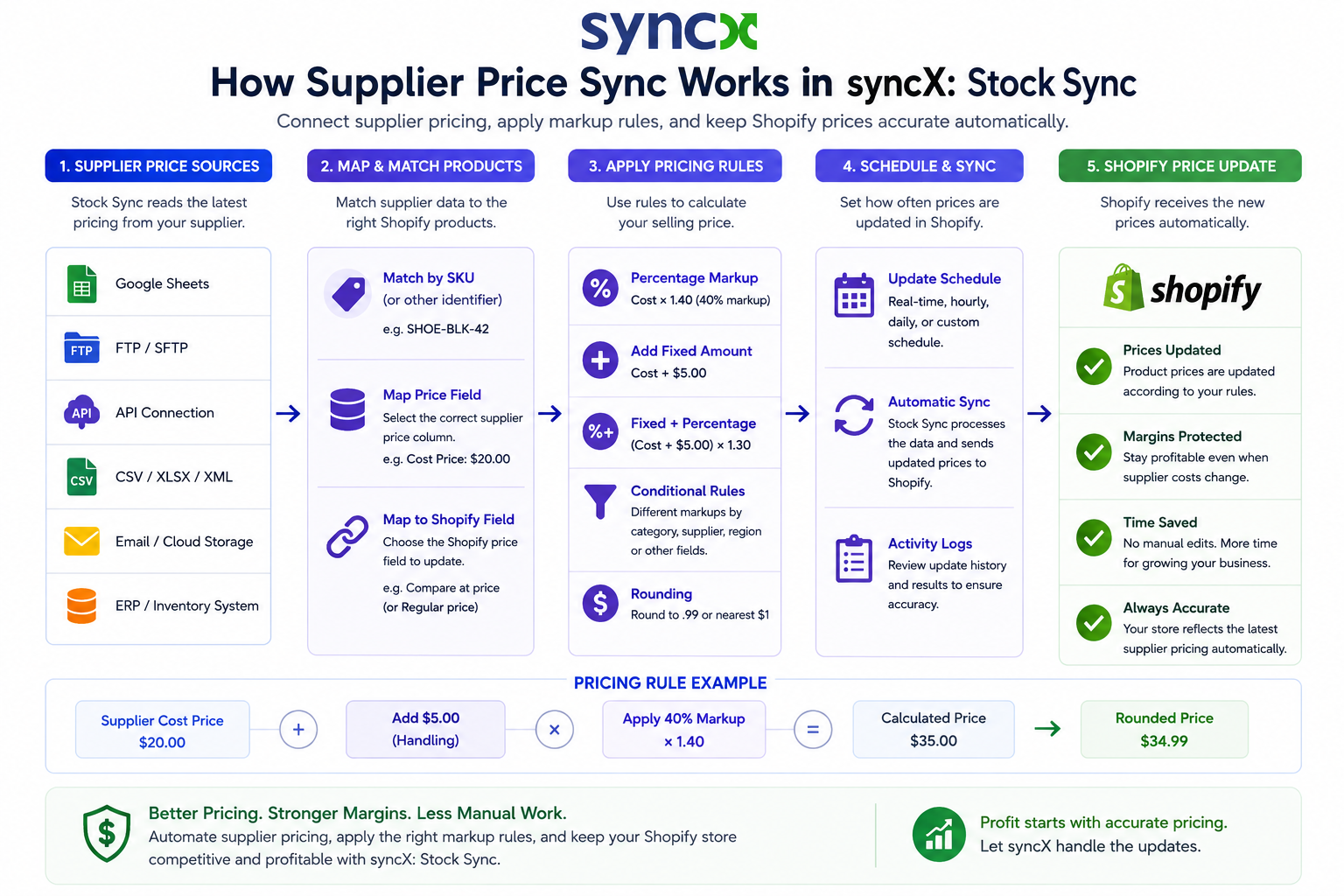
Once the correct supplier price field is mapped, the next step is deciding how Shopify should calculate the final selling price.
Ways to Apply Shopify Pricing Rules
Apply a Percentage Markup
A percentage markup increases the supplier value by a fixed proportion.
syncX: Stock Sync price conditions can multiply a supplier value to produce the final Shopify price.
Add a Fixed Amount
A fixed adjustment adds the same amount to each qualifying product.
For example:
- Supplier price: $30
- Fixed handling amount: $5
- Shopify price: $35
This may suit products with a consistent handling, packaging, or delivery cost.
Combine a Fixed Amount and Percentage
Some products need both.
For example:
- Add $8 for delivery
- Then apply a 40% markup
syncX: Stock Sync pricing conditions can combine supplier columns, fixed adjustments, and multipliers in one formula.
Apply Conditional Pricing Rules
Not every product needs the same markup.
A low-cost accessory may need a higher percentage to cover handling. A high-value item may use a smaller percentage. You may also apply separate rules by category, description, supplier, region, or another mapped feed value.
syncX: Stock Sync supports conditional pricing based on available source fields.
Round the Final Price
A calculated price may produce values such as $27.43 or $81.17.
Rounding rules help produce more consistent storefront pricing, such as:
- $27.99
- $81.00
- $84.95
syncX: Stock Sync applies its pricing operations in sequence, including conversion, pricing conditions, and rounding.
The formula should reflect both the supplier data and the commercial result you need to protect.
How to Build a Shopify Pricing Rule
1. Choose the Base Value
Identify the supplier value the formula should start from:
- Wholesale cost
- Recommended retail price
- Promotional price
- Regional price
- Another approved field
2. Define the Commercial Goal
Decide whether the rule is designed to protect:
- A target markup
- A target margin
- A minimum dollar profit
- Shipping and handling costs
- Regional fees
- A minimum advertised price
3. Build the Formula in the Correct Order
For example:
- Convert currency
- Add duties or fixed costs
- Apply the markup
- Enforce a minimum price
- Round the result
The order matters. Adding a fixed cost before applying a percentage markup produces a different result from adding it afterward.
4. Add Conditions and Exceptions
Apply separate logic by:
- Supplier
- Category
- Cost range
- Country
- Region
- Product type
- Brand
5. Add Price Safeguards
Prevent updates when:
- The source price is blank
- The source price is zero
- The calculated result falls below cost
- The price changes beyond an acceptable percentage
- The currency is missing or unexpected
6. Validate Representative Products
Test:
- A low-cost product
- A high-value product
- A product near a pricing threshold
- A product with a regional adjustment
- A product with a blank or zero source value
7. Monitor Pricing Exceptions
Review unusually large price movements, failed formulas, and products that fall below the required margin.
Automating Tariff-Based and Regional Pricing
Cross-border pricing may need more than one standard markup.
Different regions can introduce:
- Tariffs
- Import duties
- Brokerage fees
- Regional shipping costs
- Market-specific price requirements
With tariff-based pricing, you can use source values such as country, supplier, or region to apply different formulas.
For example:
Stock Sync’s Price Condition feature supports conditional base prices and Shopify Markets price fields, allowing different formulas by supplier, country, or region.
Read How Shopify Merchants Can Automate Tariff-Based Pricing Using syncX: Stock Sync for the detailed Shopify Markets workflow.
Feed-Based Pricing vs Bulk Product Editing
Both methods can change Shopify prices, but they solve different problems.
A bulk price update in Shopify is useful when you are preparing a promotion, adding a temporary markdown, or changing selected products without supplier data.
Feed-based automation is better when the selling price must keep responding to supplier costs.
The Shopify Bulk Product Editing guide explains how to update selected store products directly without relying on a feed. syncX: Stock Sync supports both feed-based pricing automation and direct bulk product changes.
Common Pricing Automation Mistakes
Applying One Markup to Every Product
Different categories have different costs, fees, margins, and competitive conditions. Use conditional rules when one markup would produce unrealistic prices across the catalog.
Confusing Markup With Margin
A 40% markup does not create a 40% margin.
Calculate the required multiplier before activating the feed.
Mapping the Wrong Supplier Column
A field labeled Price may contain cost rather than retail value.
Confirm the meaning with the supplier.
Ignoring Zero or Blank Prices
Do not let a blank or zero supplier value become the Shopify selling price. Add safeguards before activating automatic updates.
Running Pricing Updates Before Fresh Data Is Available
A feed cannot apply a new supplier price until the source has been updated.
Run pricing updates after the supplier publishes fresh data, and use How to Filter and Schedule Your Shopify Supplier Sync for the full timing framework.
Skipping Test Products
One incorrect formula can affect thousands of products.
Test a small sample, verify the calculation, and then expand the update.
Final Thoughts: Keep Shopify Prices Current Without Reworking Your Catalog
Pricing should not depend on someone noticing that a supplier file has changed.
With the right source, mapping, formulas, and schedule, syncX: Stock Sync can automate pricing in Shopify while keeping your rules consistent across a growing catalog.
Supplier costs change. Your selling prices respond automatically. Your team spends less time editing products, and your margins are less exposed to delayed updates.
Start automating supplier pricing with syncX: Stock Sync, or explore the Shopify Stock Sync integration today.
Frequently Asked Questions
Can syncX: Stock Sync automatically update Shopify prices from a supplier feed?
Yes. syncX: Stock Sync can map a supplier pricing column, apply pricing rules, and update Shopify on a configured schedule.
Can I apply different markups to different products?
Yes. Pricing conditions can use mapped values such as product type, supplier, description, country, or region to apply different formulas.
Can I add a fixed cost before applying a percentage markup?
Yes. Stock Sync price conditions can combine a fixed amount with a percentage calculation.
Should I use supplier pricing sync or bulk editing?
Use supplier pricing sync for recurring updates based on a feed.
Use bulk editing for direct, one-time changes such as seasonal promotions or selected product markdowns.
Can Stock Sync update Shopify Markets prices?
Yes. Stock Sync supports Markets Price mapping and pricing conditions for regional price adjustments.
How often should supplier pricing update?
Run the feed after the supplier publishes fresh pricing. Daily may suit stable costs, while suppliers that change prices throughout the day may need more frequent updates. See How to Filter and Schedule Your Shopify Supplier Sync for the full scheduling framework.



.jpg)






Start Automating Your Inventory Today


Company Reg: 1047341V
5-13-05, Block 5, VSQ @ PJ City Centre, Jln Utara, 46200 Petaling Jaya, Selangor.


.svg)