

Field Mapping Explained: How syncX Matches Supplier SKUs, Prices and Quantities to Shopify


Key Takeaways
- Field mapping matches each column in a supplier feed with the correct Shopify product field.
- A reliable identifier, usually the SKU, helps syncX: Stock Sync update the correct product or variant.
- Incorrect mapping can send quantities, prices, or product details to the wrong fields.
- Testing a small group of products helps catch mapping problems before the full feed runs.
- syncX: Stock Sync can map supplier data such as SKUs, quantities, pricing, images, categories, and metafields to Shopify.
Why Field Mapping Controls Every Shopify Sync
Your supplier calls one column Item Code. Shopify calls it SKU.
Another supplier uses Available, On Hand, or Free Stock for inventory. One file lists the supplier cost, while another lists the final selling price.
The data may describe the same products, but the systems do not automatically understand each other’s labels.
Field mapping creates that connection. It tells syncX: Stock Sync which supplier value belongs in each Shopify field.
Get it right, and the feed updates the correct products with the correct quantities, prices, images, and details. Get it wrong, and a technically successful sync can still leave your store with inaccurate stock or unexpected product changes.
What Is Field Mapping?
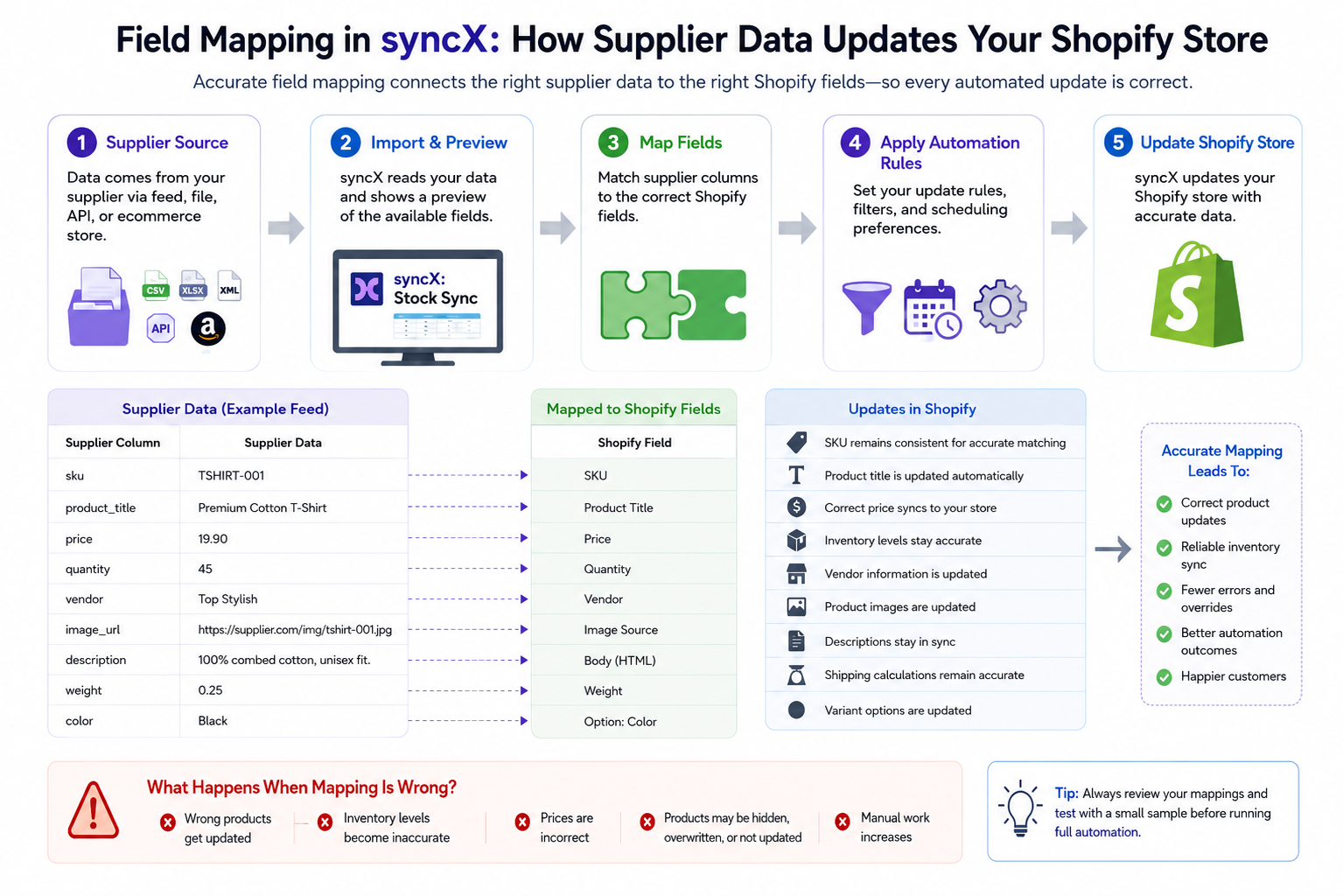
Field mapping is the process of connecting fields from a supplier file, ERP export, or API to the corresponding product fields in Shopify.
Supplier data may come in supported formats such as CSV, XML, JSON, Excel, or EDI, including files generated from an ERP or JSON data from an API.
For example:
When you map supplier fields to Shopify, you are giving the sync clear instructions:
- Use this column to identify the product.
- Use this column for the available quantity.
- Use this value as the selling price.
- Send this text to the product title.
- Place this URL in the image field.
This is different from simply connecting the supplier file. The connection gives syncX: Stock Sync access to the source. Field mapping determines what the data should do after it arrives.
For help choosing the source first, read our guide to Shopify supplier connection methods.
Why Is Field Mapping Important?
Field mapping affects every update made by the feed. An incorrect identifier, quantity field, or price column can produce inaccurate stock, failed matches, or unprofitable pricing.
Accurate mapping helps you:
- Update the correct product or variant
- Keep Shopify inventory aligned with supplier stock
- Apply the correct price and markup rules
- Import product details into the intended fields
- Prevent blank or unrelated values from overwriting store data
- Maintain a consistent process across multiple supplier feeds
The How to Set Up a Product Feed in syncX Stock Sync guide explains how field matching works with connection settings, filters, and update schedules.
Matching Products and Mapping Update Fields Are Different
A reliable feed needs to answer two separate questions.
Which Shopify Product Should Be Updated?
First, syncX: Stock Sync needs a value that identifies the correct product or variant.
The SKU is commonly used because it is intended to be unique. A supplier record with SKU RED-SHIRT-M should match the Shopify variant carrying the same SKU.
This is often called Shopify SKU mapping: using a consistent identifier to connect each supplier record with the correct store product or variant.
Depending on the workflow, another supported identifier may be used. The important point is consistency. The value in the supplier source must match the value stored in Shopify.
Which Fields Should Change?
Once the product is identified, you decide which supplier columns should update Shopify.
You may map:
- Quantity
- Price
- Compare-at price
- Cost
- Product title
- Description
- Vendor
- Product type
- Images
- Categories
- Tags
- Metafields
syncX: Stock Sync supports inventory, pricing, SKUs, images, categories, and metafield syncing through supplier feeds and connected data sources.
You do not need to update every available field. Map only the data the supplier should control.
For example, you may let the supplier update quantity and cost while keeping your Shopify titles, descriptions, and images unchanged.
Which System Should Control Each Shopify Field?
Decide whether each field should be controlled by the supplier, Shopify, or a syncX: Stock Sync rule.
Give each field one clear source of truth. This prevents supplier data from overwriting product content, pricing, or merchandising settings you want to control in Shopify.
Common Supplier Fields to Map
SKU or Product Identifier
The identifier connects each supplier row to the correct Shopify item.
Before you match supplier SKU to Shopify, check for:
- Missing SKUs
- Duplicate SKUs
- Extra spaces
- Different capitalization
- Leading zeros
- Supplier prefixes
- Different variant codes
A supplier value of 00125 may not match a Shopify SKU stored as 125. The products look related at a glance, but the systems read them as different values.
Variant-Level Mapping
Correct attribute/variant mapping becomes especially important when products have sizes, colors, materials, or other options. Each variant row must connect to the right Shopify variant rather than only the parent product.
Inventory Quantity
Quantity fields may be labeled:
- Quantity
- Stock
- Available
- On Hand
- Free Stock
- Inventory
- ATS
Do not assume every stock-related column means the same thing.
On Hand may include reserved units. Available to Sell may already subtract committed orders. Ask the supplier which field represents inventory that customers can actually purchase.
Cost and Selling Price
A supplier file may contain several price columns:
- Wholesale cost
- Recommended retail price
- Minimum advertised price
- Promotional price
- Regional price
- Currency-specific price
Confirm which value belongs in Shopify and whether a markup, currency conversion, or rounding rule should be applied.
For a deeper pricing workflow, read How To Auto-Update Supplier Pricing And Apply Markups In Shopify.
Product Titles, Vendors, and Descriptions
These fields may be useful when importing new products, but they require more care when updating an established catalog.
A supplier title may be written for warehouse identification rather than customers. A description may contain formatting that does not suit your storefront.
Map these fields only when the supplier content is suitable or when you have rules to clean and transform it.
Images, Categories, and Metafields
Product feeds can also provide image references, category information, and custom attributes.
syncX: Stock Sync supports image and metafield syncing, while its Shopify integration also includes category mapping and bulk product management capabilities.
Field Mapping Example
Suppose a fashion supplier provides this file:
The mapping might be:
This Shopify CSV field mapping setup allows one supplier file to update several product and variant fields without manual editing.
How to Configure Field Mapping Correctly
1. Identify the Matching Field
Choose the value that connects each supplier record to the correct Shopify product or variant.
For most inventory feeds, this is the SKU.
2. Confirm What Each Supplier Column Means
Whether the data comes from a CSV or Excel file, an ERP-generated XML or EDI feed, or JSON data from an API, do not map fields based on their names alone.
Confirm whether:
- Price means cost or retail price
- Stock includes reserved inventory
- Available represents sellable quantity
- Product-level rows and variant-level rows are separated correctly
3. Confirm Field Ownership
Use the field-ownership plan above to confirm whether each value should come from the supplier, Shopify, or a syncX: Stock Sync rule.
4. Map Only the Required Fields
Connect each approved supplier column to its Shopify destination.
5. Test Representative Products
Test more than one easy SKU.
Include:
- A product with variants
- A SKU containing leading zeros
- A product with blank optional fields
- A product with zero stock
- A product with multiple price columns
6. Review the Results Before Automation
Confirm that the correct products and fields changed.
Read How to Filter and Schedule Your Shopify Supplier Sync: Only What You Want, When You Want for record and timing rules.
What Are the Common Field Mapping Errors?
The highest-risk mistakes involve identifiers, sellable inventory, customer-facing prices, and variant matching. Lower-risk fields such as tags are usually easier to correct.
Where Field Mapping Can Fail:
- Using the Wrong Product Identifier
A title is rarely a safe identifier. Titles can change, repeat, or vary between systems.
Use a stable, unique value whenever possible.
- Mapping Supplier Cost to Shopify Price
This can expose wholesale costs or create unprofitable prices.
Confirm whether each price column represents cost, retail price, sale price, or another value.
- Ignoring Blank Values
Some supplier exports use blank cells when data is unavailable.
Without the right settings, a blank value may overwrite useful information already stored in Shopify.
- Treating Every Supplier the Same
Different suppliers use different supplier column names, stock definitions, pricing structures, and identifiers.
Create and test a separate mapping for each feed rather than assuming one setup fits every source.
- Reusing an Import Template Without Checking It
An import template can speed up repeated setups, but only when the new supplier follows the same structure.
Always verify the headers, identifiers, formats, and field meanings before reusing a previous configuration.
- Overlooking Variant-Level Data
A parent product may have one title but several variant SKUs.
If the feed matches only at product level, quantities or prices may be applied to the wrong size or color.
- Skipping Data Cleanup
Reliable data mapping starts with clean source values.
Trim unnecessary spaces, preserve leading zeros where required, standardize decimal formats, and investigate duplicate identifiers before activating the feed.
How Mapping Supports Other Automation
Field mapping gives every later rule reliable data. Pricing rules need the correct cost column. Inventory buffers need sellable quantity. Filters need accurate vendor, category, and stock fields. Visibility rules depend on correct availability data.
If the mapping is wrong, automation repeats the error across the catalog.
Continue with:
- How to Filter and Schedule Your Shopify Supplier Sync for filters and update timing
- How Real-Time Inventory Sync Prevents Overselling for stock buffers
- How to Auto-Update Supplier Pricing and Apply Markups for pricing formulas
- Auto-Remove Out-of-Stock Products for product lifecycle actions
Finall Thoughts: Map It Correctly Before You Automate
A supplier connection gives syncX: Stock Sync access to the data. Field mapping gives that data a destination.
Take time to confirm the identifier, understand each supplier column, select only the fields that should change, and test a small sample.
That work protects your inventory, prices, product information, and customer experience after the feed begins running automatically.
Start mapping supplier data with syncX: Stock Sync, or explore the Shopify syncX: Stock Sync integration to see how supplier feeds connect with your store today.
Frequently Asked Questions
What is field mapping in Shopify inventory sync?
Field mapping connects each supplier column to the correct Shopify product field.
For example, a supplier’s Available Stock column may map to Shopify inventory quantity, while Item Code maps to the variant SKU.
What happens when supplier fields are mapped incorrectly?
Incorrect mapping can update the wrong field, fail to match products, apply inaccurate prices, or show the wrong stock quantity.
Test a small sample before running the full feed.
Should I map every supplier column?
No. Map only the fields the supplier should control.
You may want the supplier to update inventory and cost without replacing your Shopify titles, descriptions, images, or SEO content.
Can one supplier feed update Shopify variants?
Yes, when each variant can be identified and mapped correctly.
Use unique variant identifiers and confirm that size, color, quantity, and price values align with the intended Shopify variants.
Can I use different mappings for different suppliers?
Yes. Each supplier may use different identifiers, headers, pricing fields, and stock definitions.
Separate mappings help prevent one supplier’s structure from being incorrectly applied to another.
Do I need coding knowledge to map supplier data?
Standard syncX: Stock Sync field matching does not require coding. You select the supplier columns and connect them to the relevant store fields through the feed setup.
More complex APIs, transformations, or custom supplier systems may require additional technical support.




.jpg)






Start Automating Your Inventory Today


Company Reg: 1047341V
5-13-05, Block 5, VSQ @ PJ City Centre, Jln Utara, 46200 Petaling Jaya, Selangor.


.svg)