

How to Filter and Schedule Your Shopify Supplier Sync: Only What You Want, When You Want


Key Takeaways
- Supplier feed filters control which products and records can update your Shopify store.
- You can filter products by stock status, vendor, tag, category, price, quantity, or other available fields.
- The best update schedule depends on how often your supplier refreshes its data and how quickly its inventory sells.
- Testing filters before activating automation helps prevent incorrect prices, unwanted products, and stock errors.
- syncX: Stock Sync lets merchants customize supplier feeds and schedule inventory updates without repetitive uploads.
Why Syncing Everything Is Not Always the Right Approach
A supplier feed can be connected correctly and still create problems.
The file may contain products you do not sell, items with low margins, discontinued SKUs, or stock quantities that are too low to trust. If every record flows into Shopify without rules, your catalog can fill with products you never intended to list.
Timing matters too. Running a feed every hour does not improve accuracy when the supplier updates its file only once each morning. On the other hand, a once-daily sync may be too slow for limited stock shared across multiple retailers.
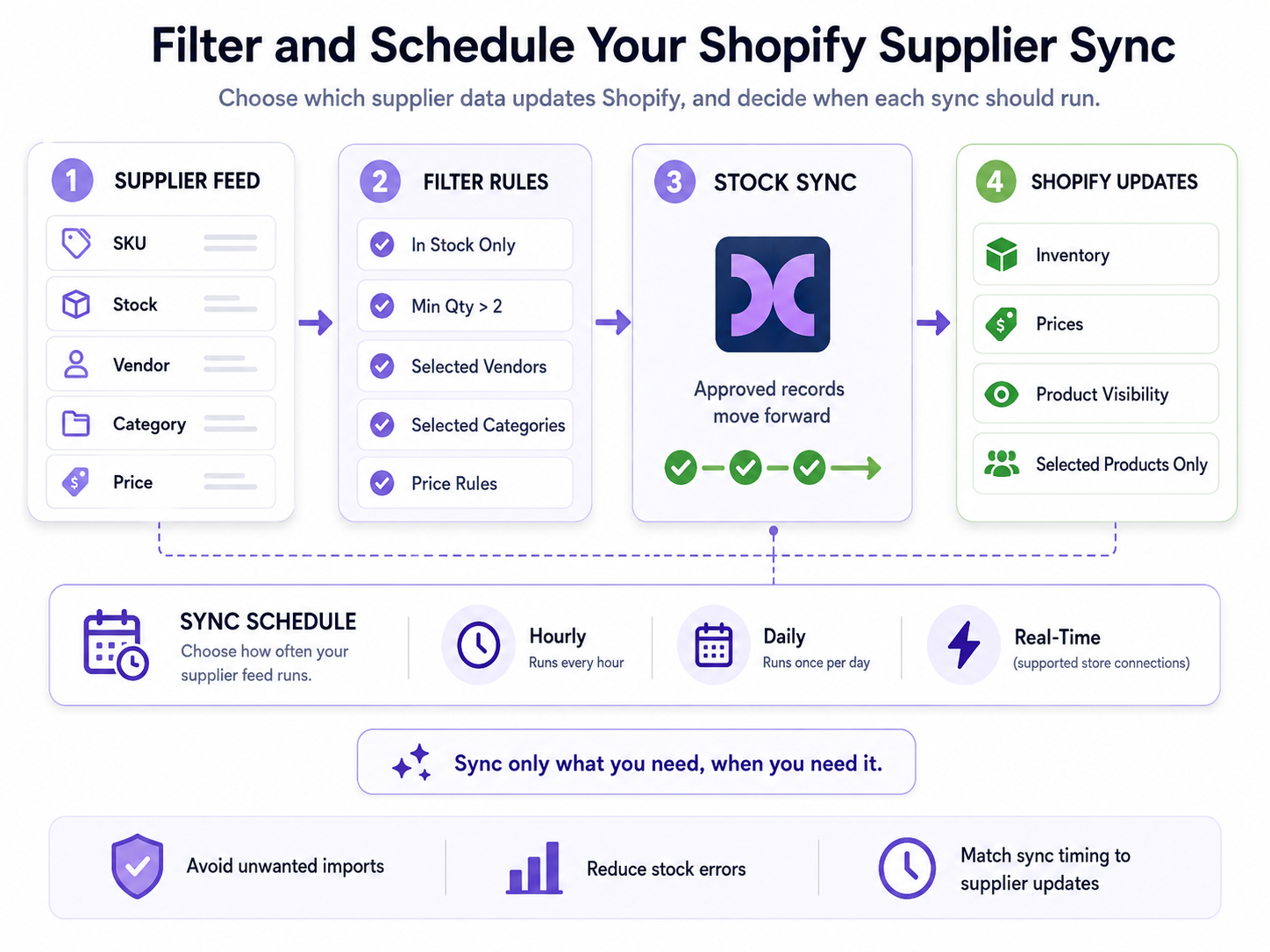
That is why Shopify sync filters and scheduling should be planned together. Filters decide what the feed can change. The schedule decides when those changes reach your store.
For the complete feed creation process, read How to Set Up a Product Feed in syncX Stock Sync.
What Are Supplier Feed Filters and Sync Schedules?
Supplier feed filters are rules that include or exclude records based on values in the source data.
You might use them to:
- Update only products that are in stock
- Include selected vendors or brands
- Exclude products below a chosen price
- Import only specific categories
- Ignore records with missing SKUs
- Limit updates to products above a minimum quantity
A sync schedule determines how often syncX: Stock Sync checks the source and applies eligible changes to Shopify.
For example:
- Every hour
- Several times per day
- Once per day
- At a specific recurring time
- In real time for supported store-to-store connections
syncX supports custom inventory rules, selected vendors, tags, product groups, and scheduled inventory updates. Real-time syncing is available for supported connections between Shopify, WooCommerce, and BigCommerce stores, while other supplier sources can run on configured schedules.
Why You Should Not Import Every Supplier Record
Supplier data is built for the supplier’s operation, not specifically for your Shopify catalog.
A wholesaler may provide 20,000 products when you only want 800. The feed may also include restricted brands, clearance items, poor-margin products, or products that cannot be shipped to your region.
Filters help you exclude records that do not fit your store and keep the feed focused on products you can sell reliably.
What Can You Filter in a Shopify Supplier Feed?
The available options depend on the fields included in the supplier source. You can only build a useful rule when the feed provides the value you need.
Stock Availability
An in-stock only sync can prevent unavailable supplier products from being imported or updated as sellable.
A basic rule may include products where quantity is greater than zero. However, zero is not always the only risky value.
If a supplier has one unit left and shares that inventory with several retailers, listing it may still create a high risk of cancellation. In that case, a larger threshold may be safer.
Minimum Quantity
A minimum-quantity filter can exclude products when supplier stock falls below a selected level.
This may be useful when the final units are shared across several retailers. For a full explanation of fixed buffers, percentage buffers, thresholds, and product-specific rules, read How Real-Time Inventory Sync Prevents Overselling in Your Shopify Store.
Vendor or Brand
You can sync by tag or vendor when a source contains several brands but your store carries only selected ones.
For example, a sporting goods supplier may provide footwear, fitness equipment, supplements, and apparel. A footwear store could include only approved shoe brands rather than importing the full catalog.
This keeps the feed focused and reduces cleanup later.
Product Category or Type
Category filters are useful when you sell only part of a supplier’s range.
You may include:
- Selected product categories
- Approved product types
- Specific collections
- Relevant departments
Category names must be consistent. If the supplier uses several labels for the same product group, review the source before relying on one exact value.
Price or Cost
A price filter can exclude products that do not meet your commercial requirements.
You may want to ignore:
- Products below a minimum selling price
- Items with insufficient margin
- Records with a zero or blank cost
- Products above your intended market range
The syncX: Stock Sync feed setup guide gives the example of excluding products priced below a chosen amount.
Tags and Custom Fields
Tags can identify supplier collections, promotional products, seasonal ranges, or fulfillment conditions.
Custom data fields may also support rules when the supplier provides values such as:
- Warehouse location
- Shipping class
- Product status
- Regional availability
- Discontinued status
Before applying any rule, make sure the field has been mapped and interpreted correctly. Read Field Mapping Explained: How syncX Matches Supplier SKUs, Prices and Quantities to Shopify.
How Often Should You Schedule a Shopify Supplier Sync?
There is no single schedule that works for every supplier.
The right sync frequency depends on two separate timelines:
- How often the supplier updates the source
- How quickly the products can sell or change
Checking an unchanged source more often does not create fresher data.
Use the supplier’s real update process as the starting point.
Hourly Updates
Use hourly updates when the source itself changes throughout the day and products sell quickly.
Daily Updates
Daily syncing may suit stable catalogs, slow-moving products, and suppliers that publish one update per day. Schedule the feed after the latest export becomes available.
Real-Time Updates
Real-time syncing can help when supported stores exchange inventory directly and stock changes need to pass between them quickly.
However, “real time” should not be used as a blanket description for every file or supplier source. FTP files, spreadsheets, email feeds, and similar sources still depend on when the supplier updates the data and when the scheduled feed checks it.
For a deeper explanation of how update speed affects unavailable stock and canceled orders, read How Real-Time Inventory Sync Prevents Overselling in Your Shopify Store.
Once you know which fields to filter and how often the source changes, turn those requirements into a clear set of rules.
How to Build a Supplier Filter and Schedule
1. Define the Business Rule
Start with the operational goal.
Examples:
- Only import approved brands
- Exclude products below a margin threshold
- Update only records with complete SKUs
- Run after the supplier’s daily export
2. Choose the Source Field and Operator
Examples:
- Quantity greater than 2
- Vendor equals approved brand
- Category contains footwear
- Cost is not blank
3. Decide Whether the Rule Includes or Excludes
Make the direction explicit.
“Vendor equals Brand A” could mean include Brand A or exclude Brand A. The result should not depend on assumption.
4. Check Rule Order and Overlap
When several rules apply, confirm which records survive all conditions.
For example:
- Vendor must be approved
- Quantity must be above zero
- Cost must not be blank
- Category must not be restricted
Overlapping rules can exclude more products than expected, so review the combined result rather than testing each condition separately.
5. Match the Schedule to the Source Cycle
Choose when the qualified records should update.
6. Preview Included and Excluded Records
Review both sides.
Do not only check what the filter includes. Confirm that it excludes the intended records too.
7. Activate and Review Exceptions
After the first recurring runs, check:
- Unexpected exclusions
- Newly inconsistent supplier values
- Products that no longer match the conditions
- Schedule failures
- Changes in supplier export timing
Filter and Schedule Examples by Store Type
Filters and schedules work best when they reflect the supplier’s actual risks.
A Dropshipper With Shared Inventory
Use:
- Quantity above a safety threshold
- Approved brands only
- Frequent scheduled updates
- Out-of-stock rules when quantity drops below the threshold
This reduces the chance of selling the supplier’s final unit after another retailer has already claimed it.
A Merchant Importing a Selected Product Range
Use:
- Selected categories
- Approved vendors
- Minimum price or margin requirements
- Daily updates after the supplier refreshes the feed
This prevents the full wholesale catalog from entering Shopify.
A Store With Several Suppliers
Give each supplier its own filters and automatic sync schedule.
Supplier A may update through Google Sheets once per day. Supplier B may place a new SFTP file every hour. Forcing both into the same schedule creates unnecessary checks for one and delayed updates for the other.
A Seasonal Catalog
Use:
- Seasonal tags or categories
- Active date or status fields where available
- A controlled schedule during setup
- More frequent updates during the selling period
When the season ends, review the rules rather than allowing old products to remain active indefinitely.
Common Supplier Filter and Schedule Mistakes
Filtering on an Unreliable Field
A rule is only as dependable as its source column.
If category names change between exports, a category filter may unexpectedly include or exclude products.
Setting the Stock Threshold Too Low
A quantity-above-zero rule may still expose the supplier’s final shared units. Use a safer threshold for limited stock, and read How Real-Time Inventory Sync Prevents Overselling for buffer strategies.
Using One Schedule for Every Supplier
Different suppliers have different update patterns and risks.
Configure each feed independently.
Activating Complex Rules Without Testing
One incorrect condition can exclude an entire product range or update records you meant to leave untouched.
Test a small sample first.
Forgetting Out-of-Stock Behavior
Filters control which records move through the feed, but you also need a plan for products that become unavailable.
Depending on the workflow, products may need to remain visible at zero quantity, become hidden, be unpublished, or be treated as discontinued.
Read Auto-Remove Out-of-Stock Products: Keep Your Shopify Catalog Clean with syncX.
Final Thoughts: Sync Only What You Need, When You Need It
A supplier feed should not control your store without boundaries.
Filters protect your catalog by deciding which products qualify for updates. Scheduling keeps those updates aligned with the supplier’s real data cycle.
Together, they help you avoid unwanted listings, stale quantities, unnecessary feed runs, and repetitive manual checks.
Start configuring supplier rules and schedules with syncX: Stock Sync, or explore the Shopify Stock Sync integration for Shopify-specific inventory automation today.
Frequently Asked Questions
Can I filter a supplier feed before importing products to Shopify?
Yes. You can apply rules based on available supplier fields such as stock, vendor, tag, category, quantity, or price.
The exact options depend on the data included in the source.
Can I sync only products that are in stock?
Yes. You can include records that meet an inventory condition and exclude unavailable products.
Consider using a stock buffer rather than including every product above zero.
Can each supplier have a different update schedule?
Yes. Each supplier feed can follow its own source, mapping, filters, rules, and schedule.
This is useful when suppliers refresh their files at different times.
Is hourly syncing always better than daily syncing?
No. Hourly syncing only improves accuracy when the supplier updates the source throughout the day. If the supplier publishes one daily file, schedule the feed after that file becomes available.
Can syncX: Stock Sync update selected vendors or tags only?
Yes. syncX supports rules for selected vendors, tags, product groups, and other available conditions.
Should I test filters before scheduling the feed?
Yes. Review a limited sample before activating the recurring feed.
Testing helps catch incorrect conditions, inconsistent supplier values, and unexpected exclusions before they affect the full catalog.



.jpg)




Start Automating Your Inventory Today


Company Reg: 1047341V
5-13-05, Block 5, VSQ @ PJ City Centre, Jln Utara, 46200 Petaling Jaya, Selangor.


.svg)