

Shopify Supplier Connection Methods: FTP, SFTP, API, Google Sheets & More


Key Takeaways
- You can connect most suppliers to Shopify when they provide usable product or inventory data through a file, spreadsheet, store, or API.
- A reliable supplier data feed can automate inventory, pricing, product information, and catalog updates.
- Google Sheets suits suppliers that maintain a live spreadsheet, while FTP or SFTP works well for recurring file transfers.
- APIs support frequent or customized data exchange but require working documentation and access from the supplier.
- syncX: Stock Sync connects Shopify to supplier data and automates product, inventory, pricing, and catalog updates.
How Do Shopify Supplier Connections Work?
Your supplier has the stock. Shopify has the storefront. But nothing keeps the two in sync by default.
That leaves you downloading files, cleaning data, uploading updates, and hoping nothing changes in the meantime. It may work with one supplier and a small catalog. Add more suppliers, more SKUs, or faster-moving inventory, and the problems quickly multiply: oversold products, outdated prices, and hours lost to repetitive work.
A successful Shopify supplier integration does not need to be the most technical option. It needs to be reliable, easy to maintain, and suited to how often your supplier updates inventory, pricing, and product data.
This guide compares the main connection methods and explains when each option makes sense. For the complete setup process, read our guide on how to sync Shopify with a supplier automatically.
Can You Connect Any Supplier to Shopify?
You can connect most suppliers to Shopify when they provide a usable way to access their data.
That access may include:
- A CSV, XLSX, XML, or JSON file
- A public file URL or email attachment
- A Google Sheet or cloud-hosted file
- FTP or SFTP credentials
- An API with documentation
- An inventory feed from another ecommerce store
- Access to an ERP, warehouse, or supplier system
syncX: Stock Sync for Shopify supports common sources such as FTP and SFTP, APIs, Google Sheets, Dropbox, email feeds, public URLs, ERP systems, warehouse feeds, and supplier inventory files.
The supplier does not need the most advanced system. The source needs to be structured, accessible, and updated consistently. A well-maintained Google Sheet can be more useful than an unreliable API.
What Your Supplier Needs to Provide
Ask for a data sample before building the connection. Confirm the product identifier, fields to update, delivery method, update frequency, access details, and who will handle supplier-side data issues.
You should also confirm the supported supplier file formats, such as CSV, XLSX, XML, or JSON.
Review the sample before automating it. A file can be accessible but still unusable if SKUs are missing, quantities are unclear, or the format changes repeatedly.
Our product feed setup guide explains how the connection, field matching, filters, and schedule work together.
Is Your Supplier Data Ready to Connect?
Before selecting the connection method, confirm:
- The source contains a stable SKU or product identifier
- Quantity and pricing fields are clearly defined
- The supplier can maintain consistent headers and formats
- Access credentials will not be shared informally or changed without notice
- Someone at the supplier is responsible for feed issues
- The source has a predictable update process
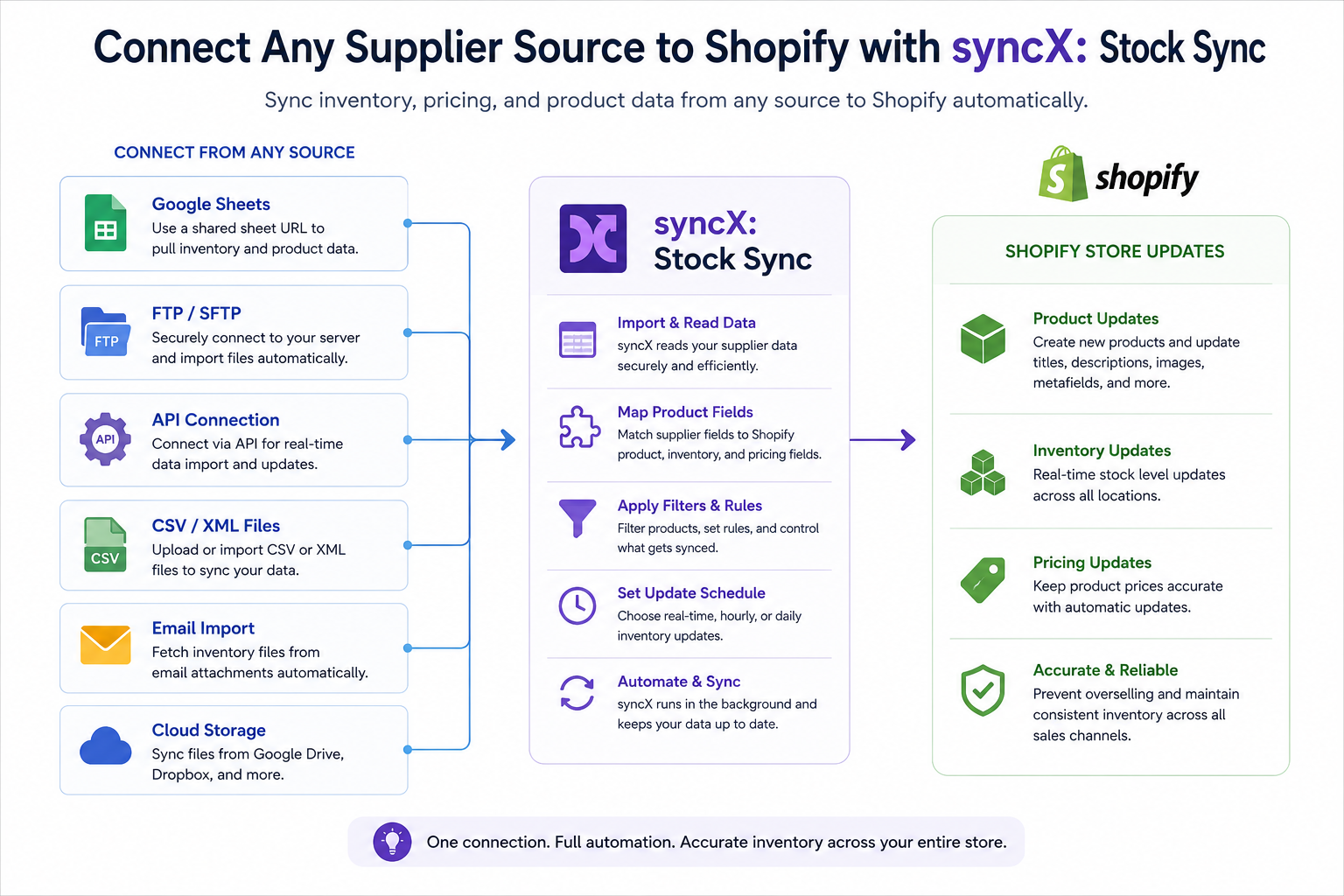
Which Supplier Connection Method Should You Use?
The right connection depends on how your supplier shares data, how often it changes, and how much technical support is available.
How Each Shopify Supplier Connection Method Works
- Manual File Upload Works for Occasional Changes
A manual CSV or XML upload can work for testing, migrations, or small catalogs with infrequent changes. But because each file is only a snapshot, stock data can become outdated quickly.
For merchants looking to sync supplier CSV Shopify data, an automated recurring source is more reliable than uploading every new file manually.
Move to automation once repeated uploads start causing delays or stock errors.
- Public URLs, Email Feeds, and Cloud Files Reduce Repetitive Work
Some suppliers publish a recurring file at the same URL, send it by email, or save it in cloud storage.
syncX: Stock Sync can retrieve supported files from public URLs, email feeds, Google Drive, and Dropbox, removing the download step. This works best when the location, headers, and format stay consistent.
- Google Sheets Is Practical for Collaborative Suppliers
For teams comparing a Google Sheets Shopify inventory workflow with a more technical server connection, Sheets usually wins on simplicity and visibility.
Google Sheets gives smaller suppliers a familiar, shared workspace while avoiding multiple emailed file versions.
- FTP and SFTP Suit Scheduled Supplier Exports
FTP and SFTP are common among wholesalers, warehouses, distributors, and ERP providers.
The connection retrieves the file using the assigned host, credentials, and path. SFTP encrypts the connection and is generally preferable.
A Shopify FTP inventory sync setup works well when the supplier exports an updated inventory file to the same server location every hour or every day.
syncX: Stock Sync retrieves the file using:
- The server host
- Username and password
- Port number
- Folder path
- File name
An SFTP import adds encryption to the transfer and is generally preferable when both options are available.
- APIs Support Frequent or Customized Data Exchange
An API allows systems to exchange data directly without relying on a stored spreadsheet or recurring file.
A Shopify API inventory sync can be useful when:
- Inventory changes frequently
- The supplier manages a large catalog
- The required data is available through defined endpoints
- Different product fields need customized handling
- The business needs a more direct system-to-system workflow
The supplier must provide:
- API documentation
- Valid credentials or tokens
- Defined endpoints
- Usage limits
- Access to the required product and inventory fields
When no standard source fits, syncX may be able to help create a custom connection using the supplier’s API documentation. The feasibility depends on the API and the available data.
Each method can work well when it matches the supplier’s existing process. The next step is deciding which option will remain reliable as your catalog and update needs grow.
How to Choose the Right Connection Method
Start with the supplier’s existing process. Do not build an API connection when a reliable SFTP export already solves the problem.
Ask:
- How often does the data change? Fast-moving inventory needs more frequent access.
- How many SKUs are involved? Larger catalogs need a stable, repeatable source.
- What does the supplier already maintain reliably? Reuse that source where practical.
- Can the supplier support technical issues? APIs and servers are harder to maintain without a responsible contact.
- How quickly must Shopify reflect a change? Update speed depends on the source and connection. Some store-to-store combinations support real-time syncing, while other feeds run on a schedule.
7For a deeper look at how update speed affects stock accuracy, read how real-time inventory sync prevents overselling in Shopify.
Choose the method that remains accurate when inventory, pricing, or product data changes.
What If Your Supplier Does Not Provide a Product Feed?
Ask what system the supplier uses to manage stock. They may still provide:
- A regularly exported spreadsheet
- A shared Google Sheet
- A file saved to FTP or SFTP
- API documentation
- Access through a Shopify, WooCommerce, or BigCommerce store
Store-to-store inventory syncing may also be possible when the supplier uses Shopify, WooCommerce, or BigCommerce. Both stores may need Stock Sync installed.
When no usable source exists, the supplier must provide or maintain one before updates can be automated.
Automation cannot correct inventory data that the supplier does not provide. You still need a consistent source containing the SKUs, quantities, prices, or product details you want to sync.
Common Supplier Connection Setups
A Small Supplier Using Google Sheets
The supplier maintains SKU, quantity, price, and product information in a shared Google Sheet.
syncX: Stock Sync reads the shared sheet automatically while the supplier continues maintaining the data in a familiar format.
A Wholesaler Using SFTP
The wholesaler exports a CSV to the same SFTP folder every hour.
syncX: Stock Sync retrieves the latest file, matches products by SKU, and updates Shopify quantities based on the supplier’s current inventory.
An ERP Using an API
The ERP provides documented endpoints for product and inventory data.
The connection retrieves the required fields and updates Shopify according to the agreed workflow and supported update frequency.
Another Ecommerce Store Acting as the Supplier
The supplier operates a Shopify, WooCommerce, or BigCommerce store.
A store-to-store connection can keep inventory aligned without relying on exported spreadsheets, subject to the supported platform setup.
What Are the Common Supplier Feed and Connection Problems?
A working connection can fail when the supplier changes its process. Watch for:
Access problems
- Expired credentials
- Changed file paths
- Removed permissions
- Invalid API keys
Source changes
- Renamed files
- Rearranged columns
- SKU format changes
- Blank quantities
Check sync reports and investigate unusual changes early. Reliable automation needs stable access and consistent data.
It also helps to agree on a basic change process with the supplier. Ask them to notify you before changing file names, column headers, login credentials, or export schedules.
What Happens After You Connect the Supplier?
Once syncX: Stock Sync can access the supplier source, the remaining setup determines how that data reaches Shopify.
You will need to:
- Match supplier records to the correct Shopify products
- Map the fields the supplier should control
- Apply filters and update rules
- Choose when the feed should run
- Test the output before full automation
Read Field Mapping Explained for product matching and field selection, then How to Filter and Schedule Your Shopify Supplier Sync for record-level rules and update timing.
Final Thoughts: Build a Reliable Connection, Then Automate Supplier Updates
The right connection gives supplier data one dependable route into Shopify.
Inventory, pricing, and product information can update without repetitive downloads, and new suppliers can follow a process you already understand.
That means less time correcting files, fewer opportunities for human error, and a cleaner operational process as your product catalog grows.
Start connecting supplier and inventory sources with syncX: Stock Sync, or explore the Shopify Stock Sync integration for Shopify-specific features today.
Frequently Asked Questions
Which supplier connection method is best for Shopify?
Choose the simplest reliable source that meets your update needs.
Google Sheets may suit a smaller supplier, SFTP often works well for scheduled wholesale files, and an API may be better for frequent or customized data exchange.
Can syncX import a supplier CSV into Shopify automatically?
Yes. syncX: Stock Sync can use supported supplier files and data sources to automate product and inventory updates.
The connection, field mapping, rules, and schedule must be configured correctly.
Can I connect multiple suppliers to one Shopify store?
Yes. syncX is built for merchants managing multiple suppliers and data sources.
Each feed can have its own connection, field mapping, filters, and update schedule.
Do I need a developer to connect a supplier to Shopify?
Not for standard supported sources. syncX provides no-code setup for common feeds, although a custom API or proprietary system may need technical support.
Can syncX help when my supplier has no feed?
A connection may still be possible if the supplier can provide a structured spreadsheet, recurring export, store connection, or documented API.
If no consistent source exists, ask the supplier to create or maintain one before automating updates.
How often should supplier data sync with Shopify?
Match the schedule to when the supplier publishes fresh data and how quickly its products sell. Read How to Filter and Schedule Your Shopify Supplier Sync for the full scheduling framework.



.jpg)






Start Automating Your Inventory Today


Company Reg: 1047341V
5-13-05, Block 5, VSQ @ PJ City Centre, Jln Utara, 46200 Petaling Jaya, Selangor.


.svg)